RETRO PLAYER · ANDROID
User Guide
English · Last updated: 14 October 2026
Retro Player plays music stored on your Android device, saved Internet-radio streams, and offers a two-deck DJ workspace. This guide explains the current controls and what to do if something does not work as expected.
1. Start and permissions
On first launch, select CONTINUE and allow Music and audio access. Retro Player then scans the device media library for supported local files, including MP3, WAV and FLAC. The app works without an account.
You can select NOT NOW to open the app without this access, but the library will stay empty until you grant the permission in Android Settings. The app may also ask for notification permission so playback controls can appear in the notification shade.
2. Music library
Tap a track to start it. The selected track is marked ▶ PLAYING. Use ↻ in the header after copying new music to the device to scan again.
- Search title or artist filters the library as you type. Latin and Cyrillic text are supported.
- All initials filters by the first letter; choose it again to return to all initials.
- The sort button cycles through title A–Z, title Z–A, shortest first and longest first.
- Tap the outlined star ☆ beside a track to add it to Favorites. Use the FAVORITES filter to show only saved tracks.
Use the three-dot menu on a track for Play next, Add to queue or Add to playlist.
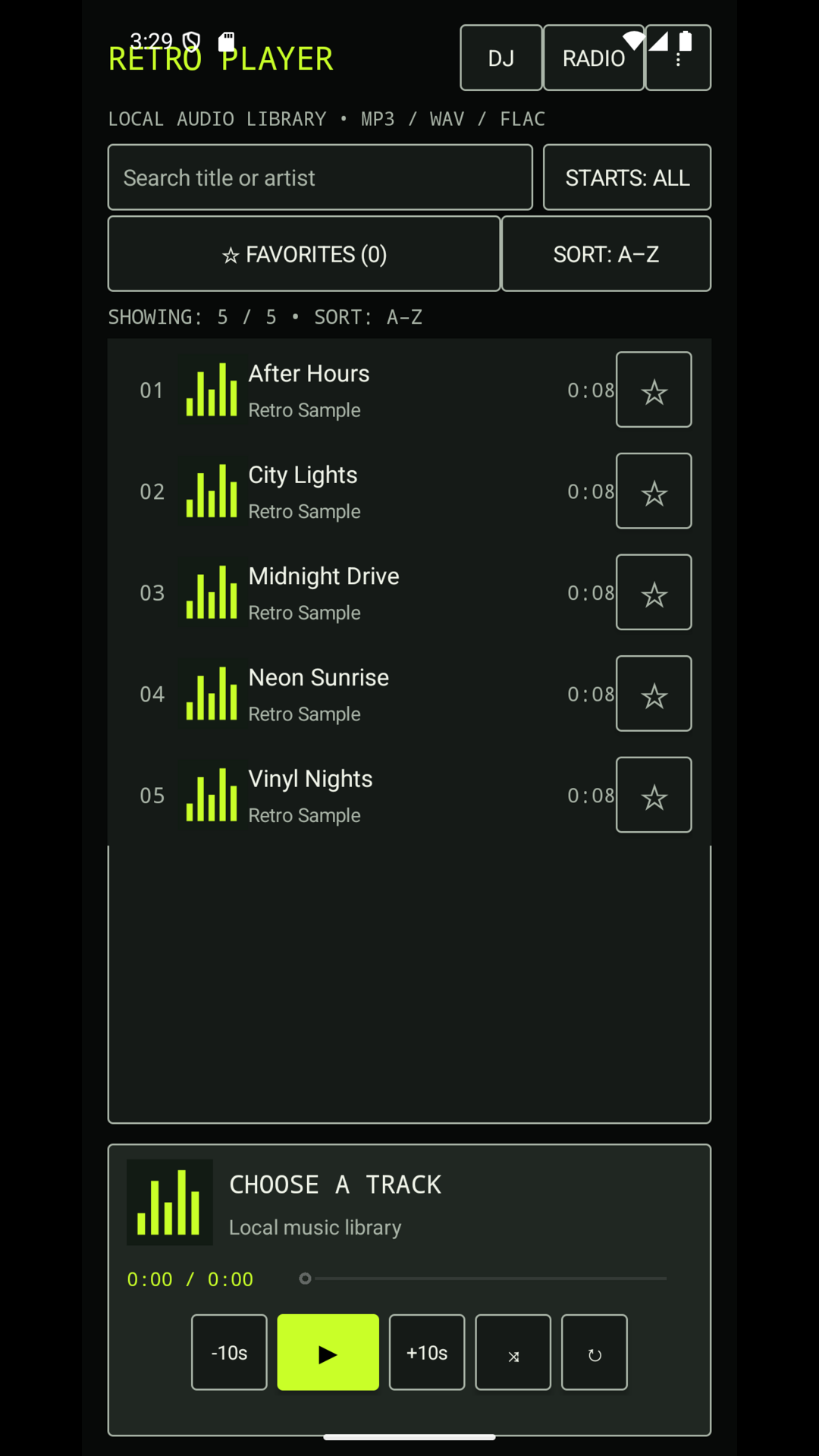
Open full-size library screenshot
3. Playback, queue and notifications
- ◀◀ / ▶▶
- Play the previous or next track in the current list or queue.
- ▶ / ❚❚
- Play or pause.
- Time bar
- Drag to move to a different point in the current local track.
- ⤨
- Turn shuffle on or off. In shuffle mode, the next track is chosen from the active list.
- ↻
- Turn repeat on or off.
Open the header menu ⋮ and choose UP NEXT to inspect the playback queue. You can move upcoming tracks, remove them, undo a removal for a short time, or clear all upcoming tracks. The current track stays at the top and cannot be removed from this screen.
While music or radio is playing, swipe down from the top of Android to use the media notification. It includes previous, play/pause, next (or next station) and shuffle. If it is missing, allow notifications for Retro Player in Android Settings.
4. Favorites and playlists
Choose PLAYLISTS & FAVORITES from the header menu to manage saved collections.
- Tap + to create a playlist and enter a unique name.
- Open a playlist to add tracks from the device library.
- Use ↑ and ↓ to change the order, or × to remove an item. A recent removal can be undone.
- Use ▶ to play in order or ↯ to shuffle the playlist.
Favorites are a special collection of starred tracks. They are available from the library’s FAVORITES filter and from the playlist screen.
5. Internet Radio
Open RADIO in the library header. Retro Player can save direct http:// or https:// stream addresses, including common MP3, AAC, HLS, M3U and PLS streams.
- Enter a station name.
- Enter the station’s direct stream URL, not its ordinary website URL.
- Select SAVE STATION.
- Tap ▶ beside the saved station to connect. Tap it again to pause.
Stations are sorted alphabetically. Tap × to remove one. Radio continues in the background; the notification’s Next action moves through saved stations.
Privacy and security note: the device connects directly to the stream provider you choose. Prefer https:// streams where available; traffic to an unencrypted http:// stream may be visible in transit.
6. Home-screen widget
Add Retro Player from your Android launcher’s widget picker. The compact widget displays the current title and has previous, play/pause, next and random-track controls. A track must be selected in the app before all controls have useful content to play.
7. Settings
Open SETTINGS from the header menu. Tap a setting row to cycle its available value.
- Appearance: switches the app’s colour palette.
- Default sorting: chooses the library sort order.
- Audio focus: pauses playback or lowers its volume when another app starts audio.
- Audio output: explains the active Android route. To select Bluetooth, USB-C or another output, use Android’s media output picker in the notification shade.
- Sleep timer: cycles through Off, 15, 30, 45 and 60 minutes. Playback stops when the selected time expires.
8. DJ mode
Tap DJ in the library header. This workspace opens in landscape and contains two independent decks: Deck A (lime) and Deck B (red). Both can play local tracks at the same time.
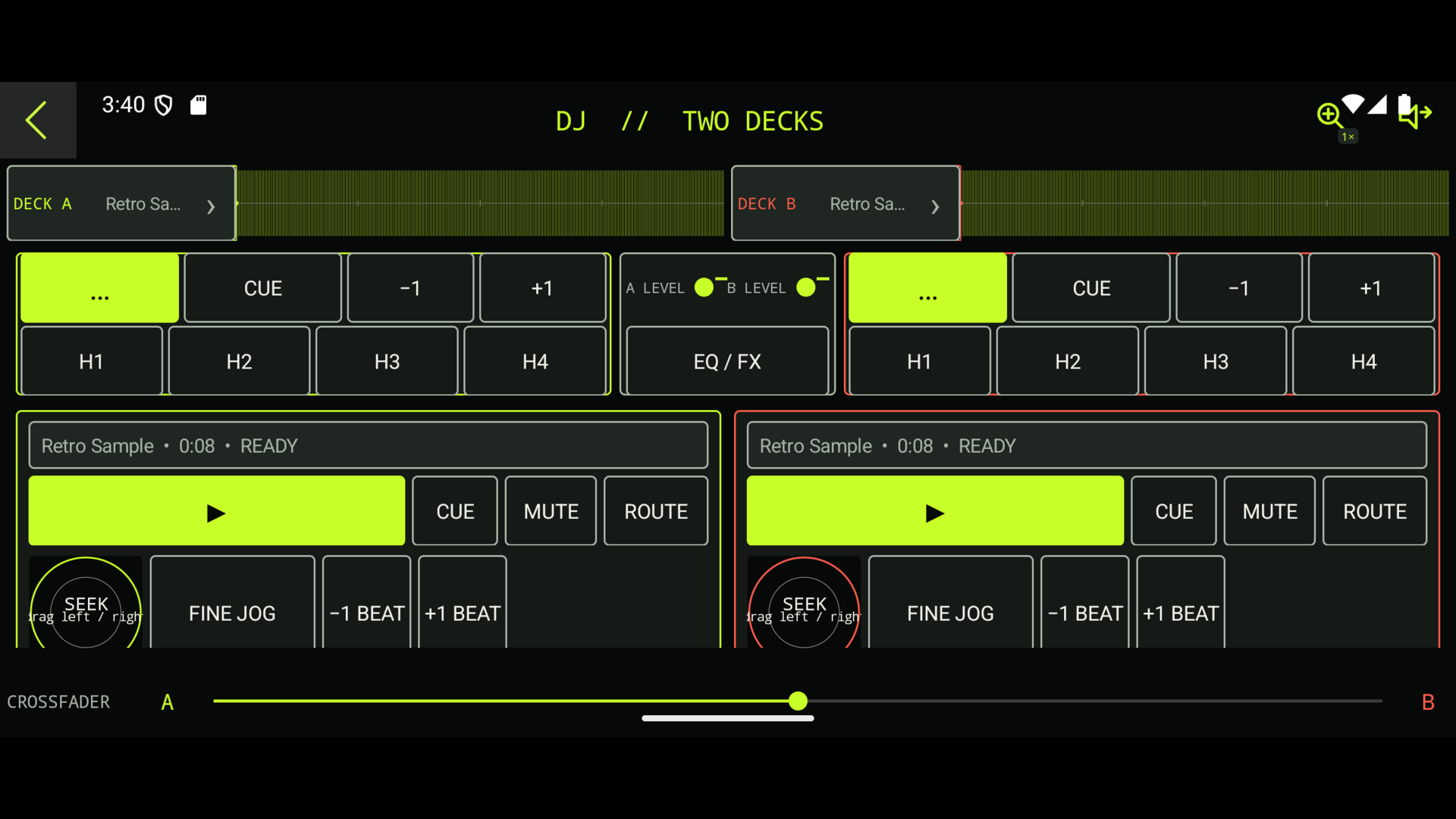
Open full-size DJ screenshot
Quick first mix
- Select one local track on each deck.
- Start Deck A, then set a cue or downbeat on Deck B.
- Start Deck B at the intended point and move the CROSSFADER from A toward B.
- Use the EQ and channel volumes to avoid two competing basslines.
Deck controls
- SELECT
- Loads a local track into that deck.
- ▶ / ❚❚
- Starts or pauses that deck.
- CUE
- The first tap stores the current position. Later taps return to it. It is a position marker, not headphone monitoring.
- MUTE
- Silences or restores the deck in the mix.
- VOLUME / GAIN / PITCH
- Adjusts the channel level and playback tempo.
- LOOP / FILTER
- Loops the loaded track or applies the available filter effect.
- LOW / MID / HIGH
- Adjusts the three EQ bands for the deck.
- −1 / +1
- Moves the deck one beat backward or forward.
Jog wheel and hot cues
Drag left or right in the large jog field under a deck to navigate precisely. FINE JOG is the normal mode. Tap it to switch to SCRATCH NAV; this is precise media navigation, not live vinyl-style scratch audio.
The H1 to H4 pads save four per-track hot cues. Tap an empty pad to save the current point. Tap a saved pad to jump to it. Long-press a saved pad to replace or delete it.
Waveform, beatgrid and ALIGN
The waveform is analysed from the complete local track in the background. Pinch outward to zoom, tap once to seek within the visible view, and double-tap or long-press the 1× control to return to the complete-track view.
- Move to a clear first beat and adjust the estimated tempo with BPM − or BPM +.
- Tap SET DOWNBEAT.
- Use −10ms and +10ms to refine the grid, then choose an 8, 16 or 32-beat phrase.
- Tap CONFIRM when the grid follows the music.
- Confirm a grid on both decks. ALIGN then performs one alignment to the other deck’s beat phase and tempo.
Important: BPM and beat lines are an aid, not a substitute for listening. ALIGN is a one-time adjustment, not continuous automatic synchronisation.
Crossfader and routing
The CROSSFADER favours Deck A on the left, both decks in the centre, and Deck B on the right. It changes the master mix but does not change stored cues or grids.
ROUTE becomes available only when Android detects at least two usable audio outputs. It can send a deck to a selected device output, but it does not create an independent pre-fader headphone mix. A professional master/cue setup requires hardware with separate Android output channels and a suitable audio engine.
9. Troubleshooting
No music appears in the library
Allow Music and audio permission in Android Settings, check that files are stored locally, then use the library refresh button ↻.
A radio station will not play
Check that the address begins with http:// or https:// and points to a direct stream. A station’s ordinary website address is not enough. The stream provider or your network may also be unavailable.
There is no notification or widget control
Allow notifications for Retro Player. For the widget, add it again from the launcher and first choose a local track in the app.
ALIGN or ROUTE is disabled
For ALIGN, load tracks into both decks and confirm a manual grid on each. For ROUTE, connect a compatible second Android audio output; an ordinary USB data cable is not an audio output.
The waveform is unavailable
Wait for analysis to finish. If it remains unavailable, the device may not decode that source format for waveform analysis, even when playback is possible.